
Customize Your Home Screen: Show, Hide, and Reorder Widgets
What it does: Your Home screen is built from cards called widgets (Sales, Popular Times, Fuel Prices, Recent Sales, and so on). In Settings you can choose which widgets appear on Home, what order they're in, and which fuel grades show. This way Home only shows what you check every day.
Step 1: Know your starting point (default Home screen)
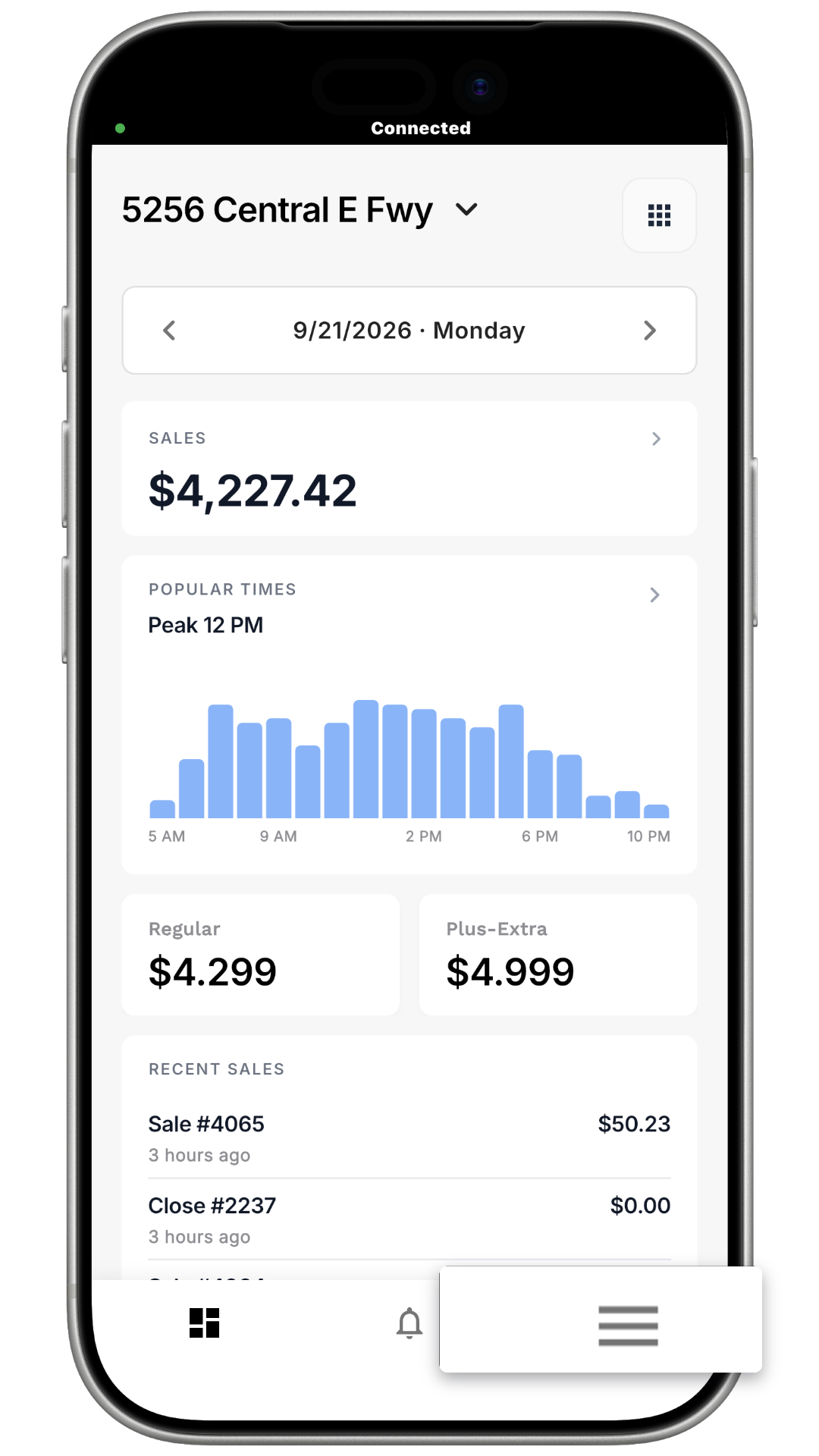
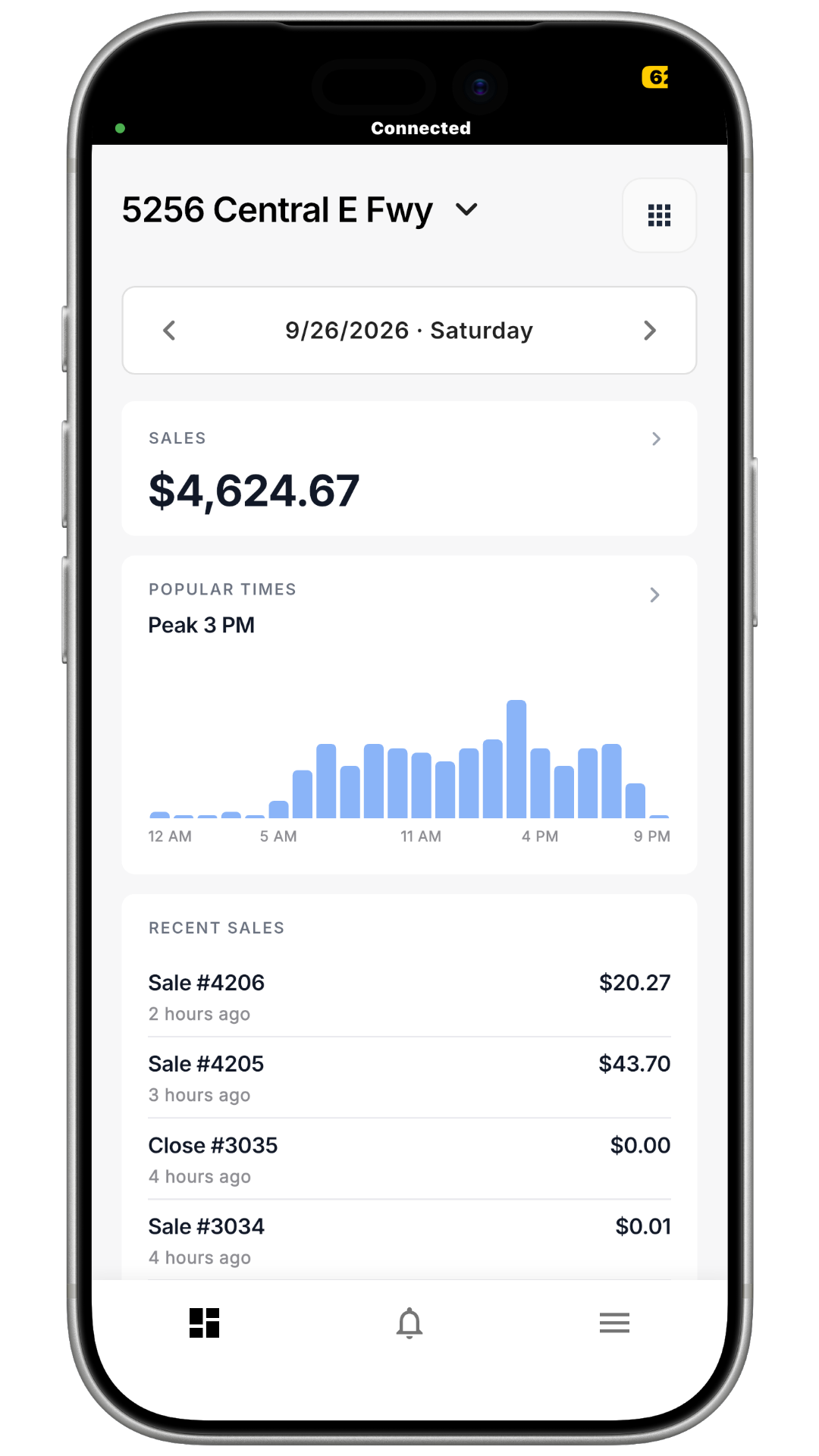
By default, Home shows Sales, Popular Times (with the peak hour), your fuel prices (in this example Regular and Plus-Extra), and Recent Sales.
Step 2: Open the Settings menu
At the bottom of Home, tap the three-line icon (☰) in the bottom-right corner. This opens the Settings menu.
Step 3: Tap Widgets
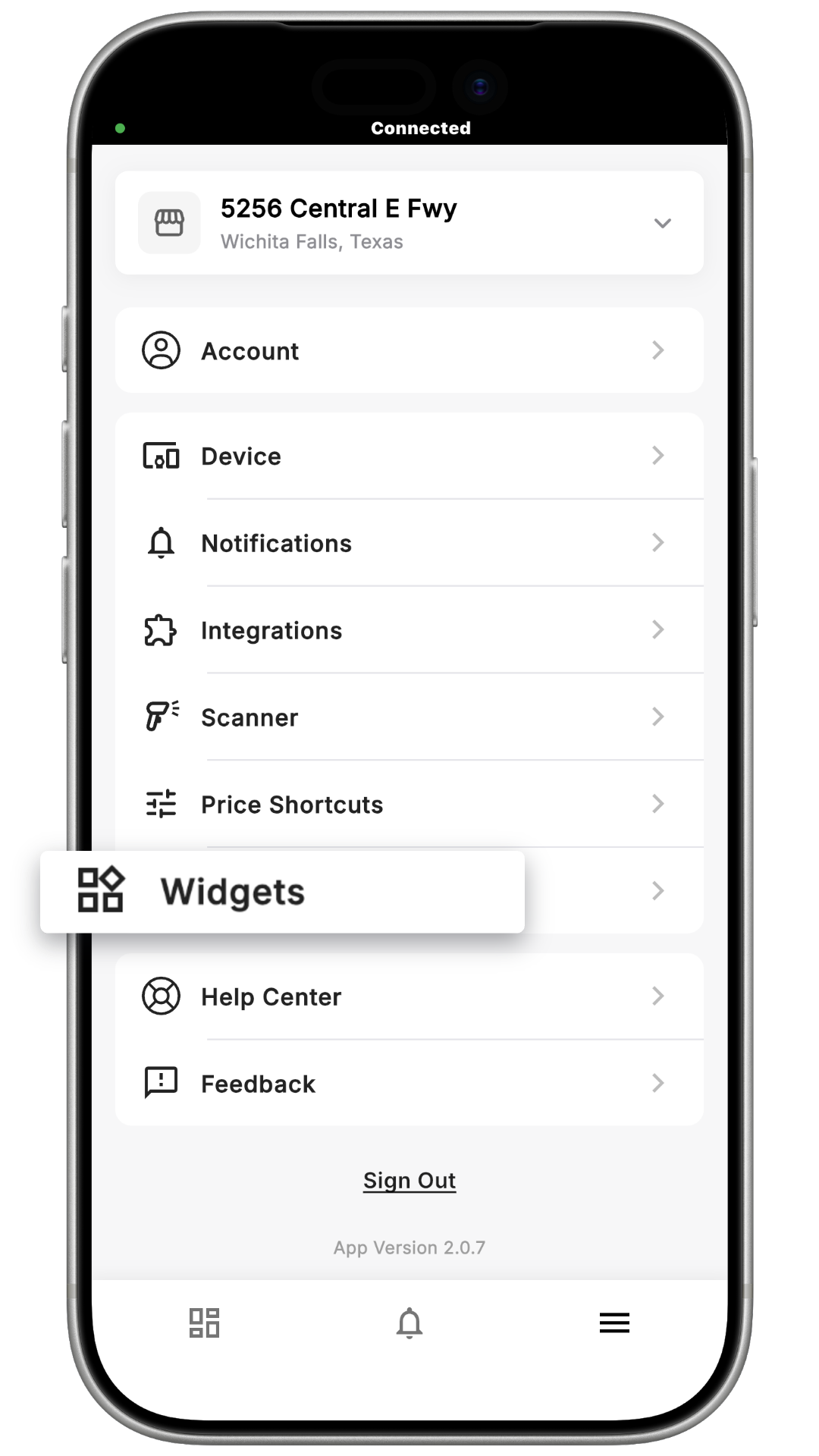
In Settings, tap Widgets (the four-shapes icon, just below Price Shortcuts).
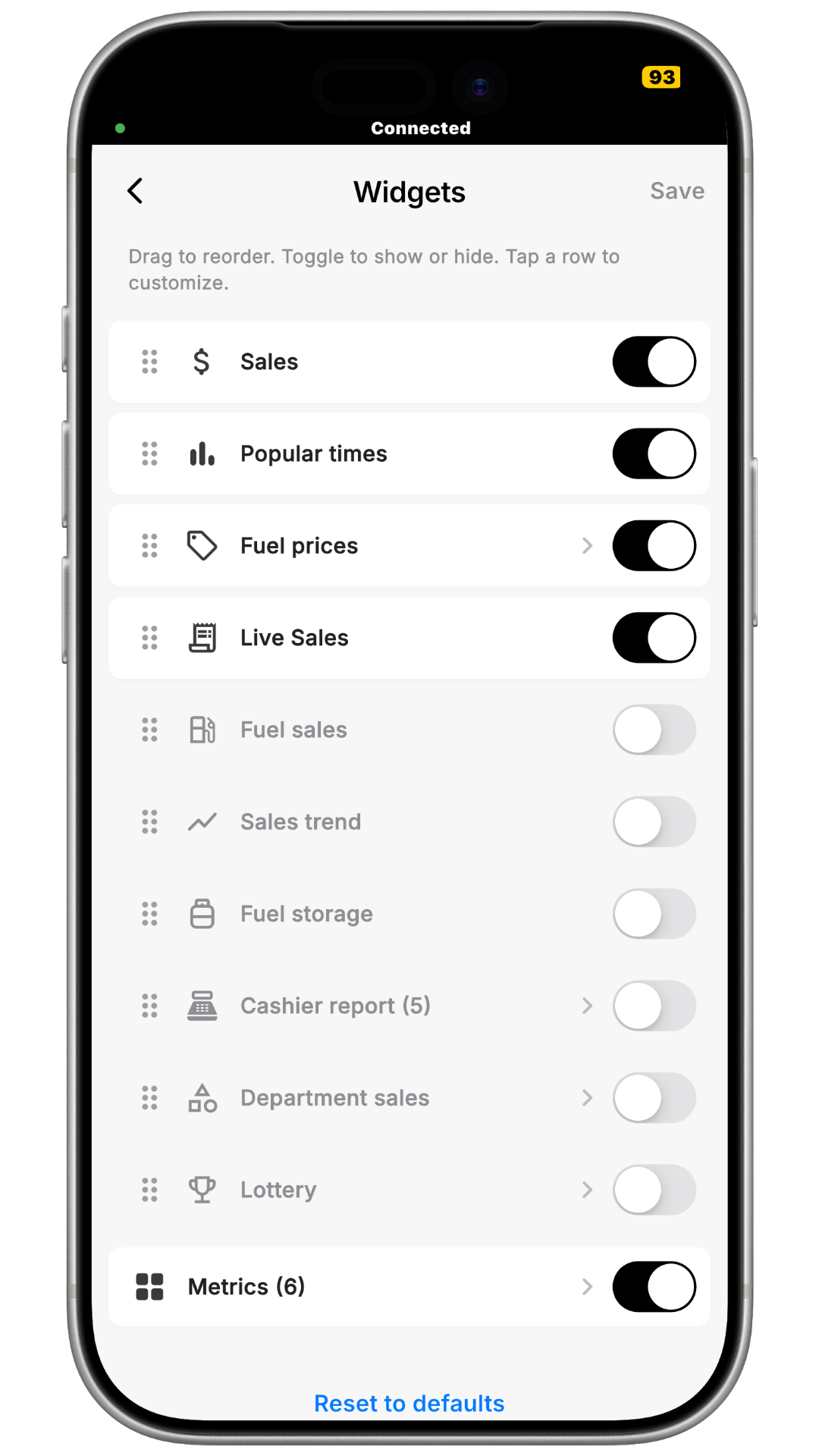
his is how is look like the default setting
Step 4: Read the Default Widgets screen
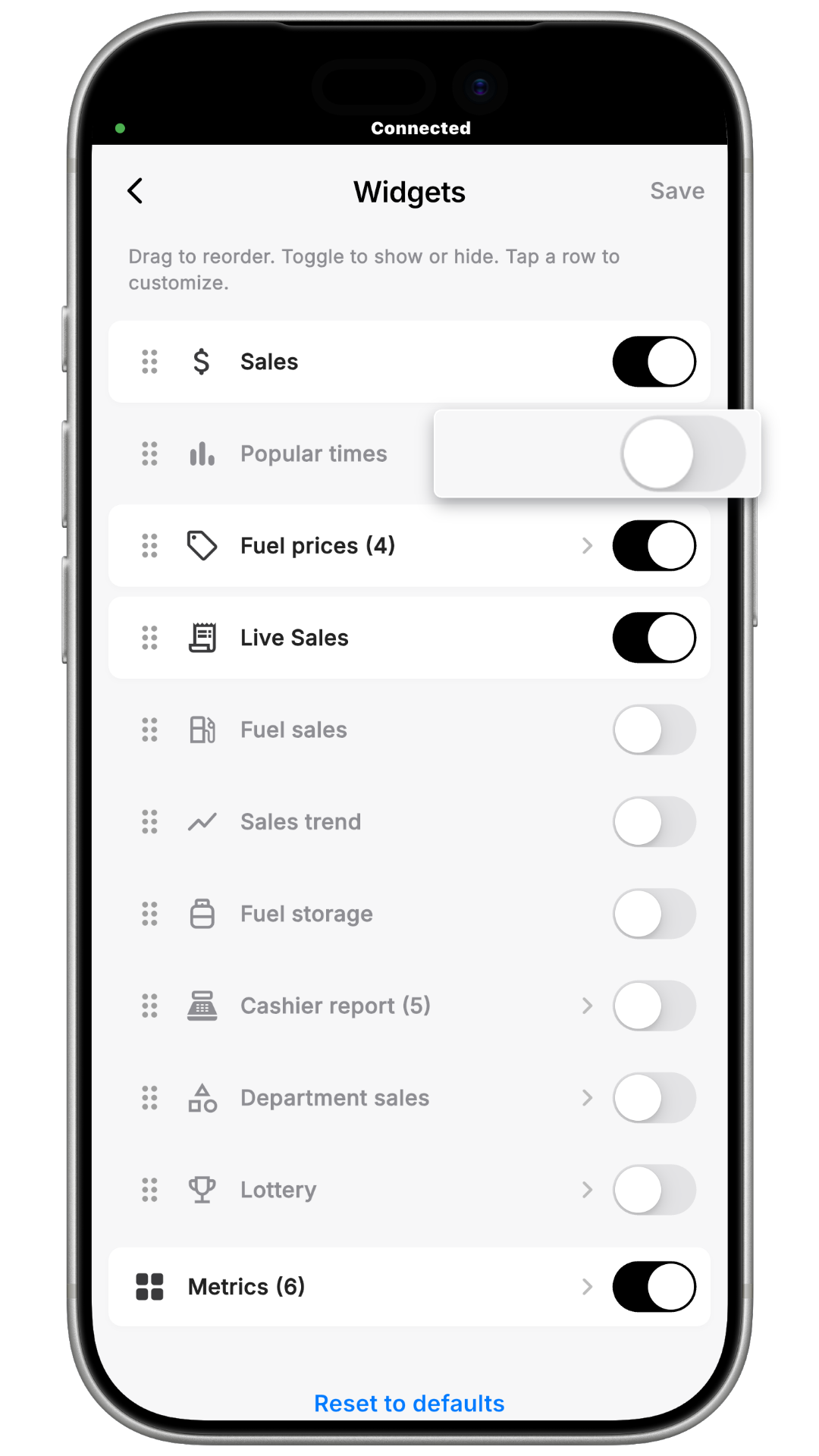
The screen tells you what to do: "Drag to reorder. Toggle to show or hide. Tap a row to customize."
-
Toggle on (black): the widget shows on Home. In the default setup, Sales, Popular times, Fuel prices, Live Sales, and Metrics are on.
-
Toggle off (gray): the widget is hidden. Fuel sales, Sales trend, Fuel storage, Cashier report, Department sales, and Lottery start off.
-
Six-dot handle (⠿): press and drag to move a widget up or down.
-
Arrow (›): some widgets have extra options. Tap the row to open them (Fuel prices, Cashier report, Department sales, Lottery, Metrics).
-
Reset to defaults (blue, bottom): puts everything back to the original layout.
-
Save (top right): tap it when you're done.
Now You can Change the home page appearance:
Example 1: Show only one fuel grade
-
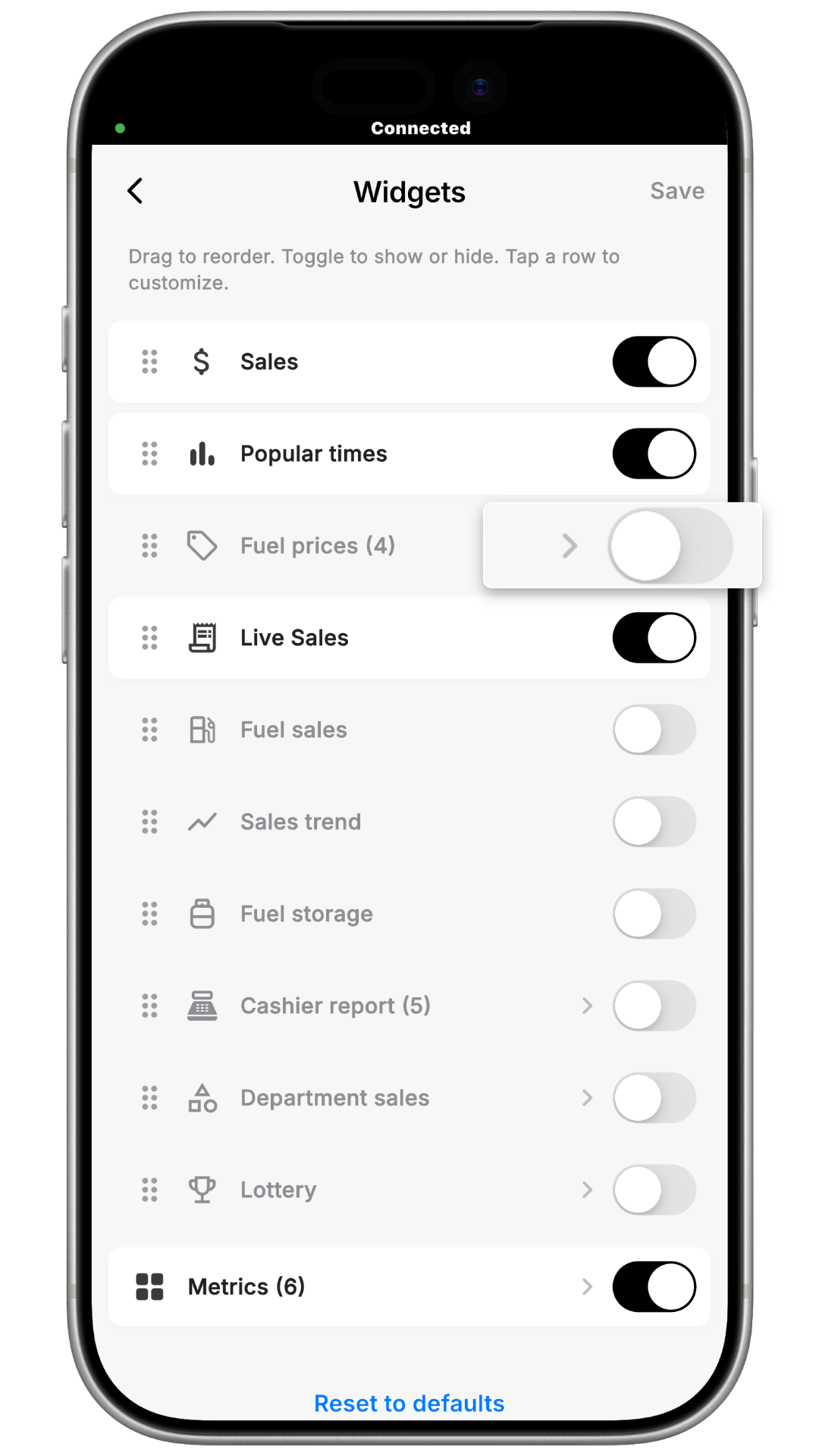
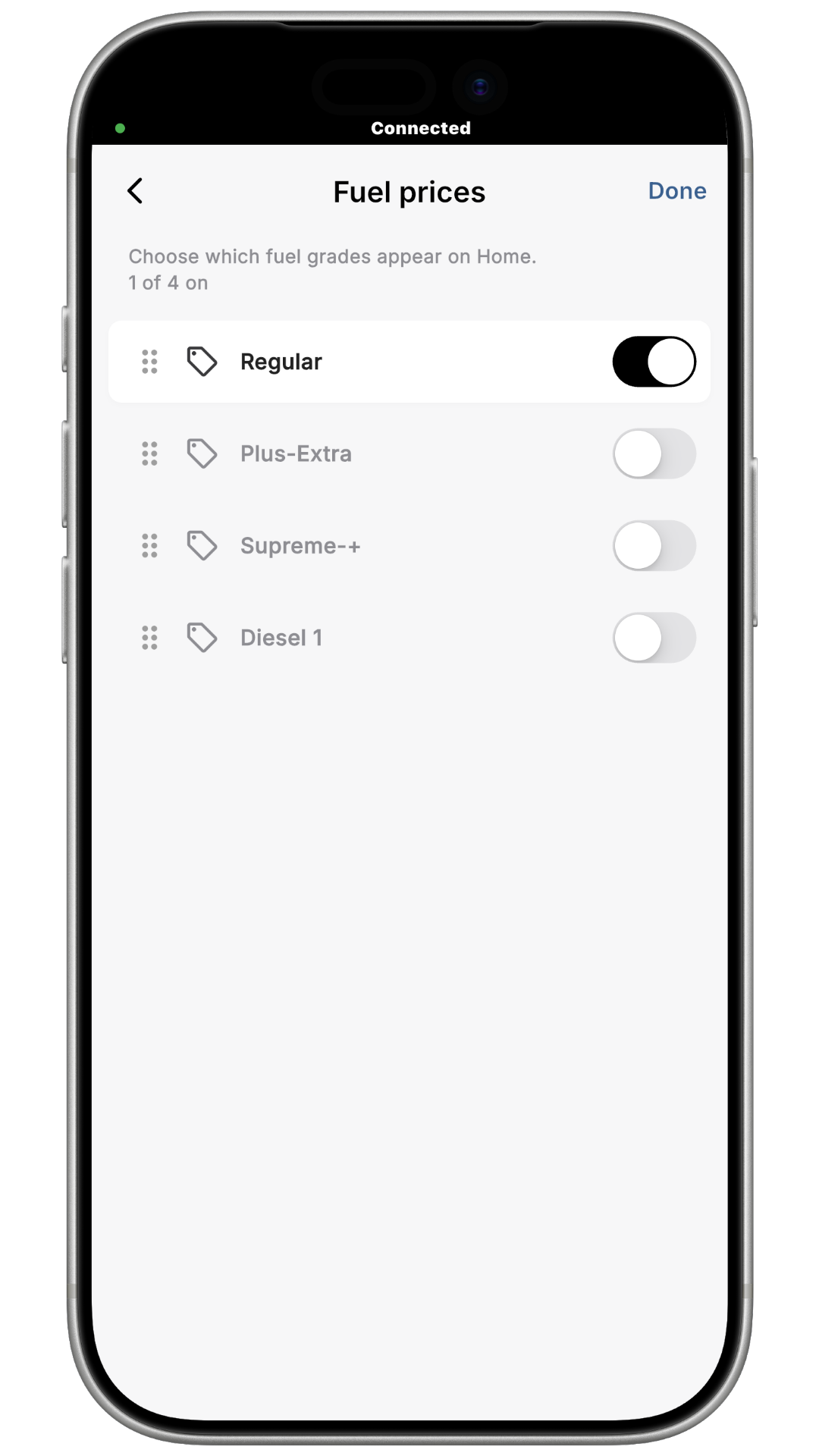
On the Widgets screen, tap the Fuel prices row (the one with the arrow).
-
On the Fuel prices screen ("Choose which fuel grades appear on Home"), turn off the grades you don't want. Here Regular stays on and Plus-Extra, Supreme-+, and Diesel 1 are off, so it reads 1 of 4 on.
-
Tap Done, then Save on the Widgets Secreen.
I .
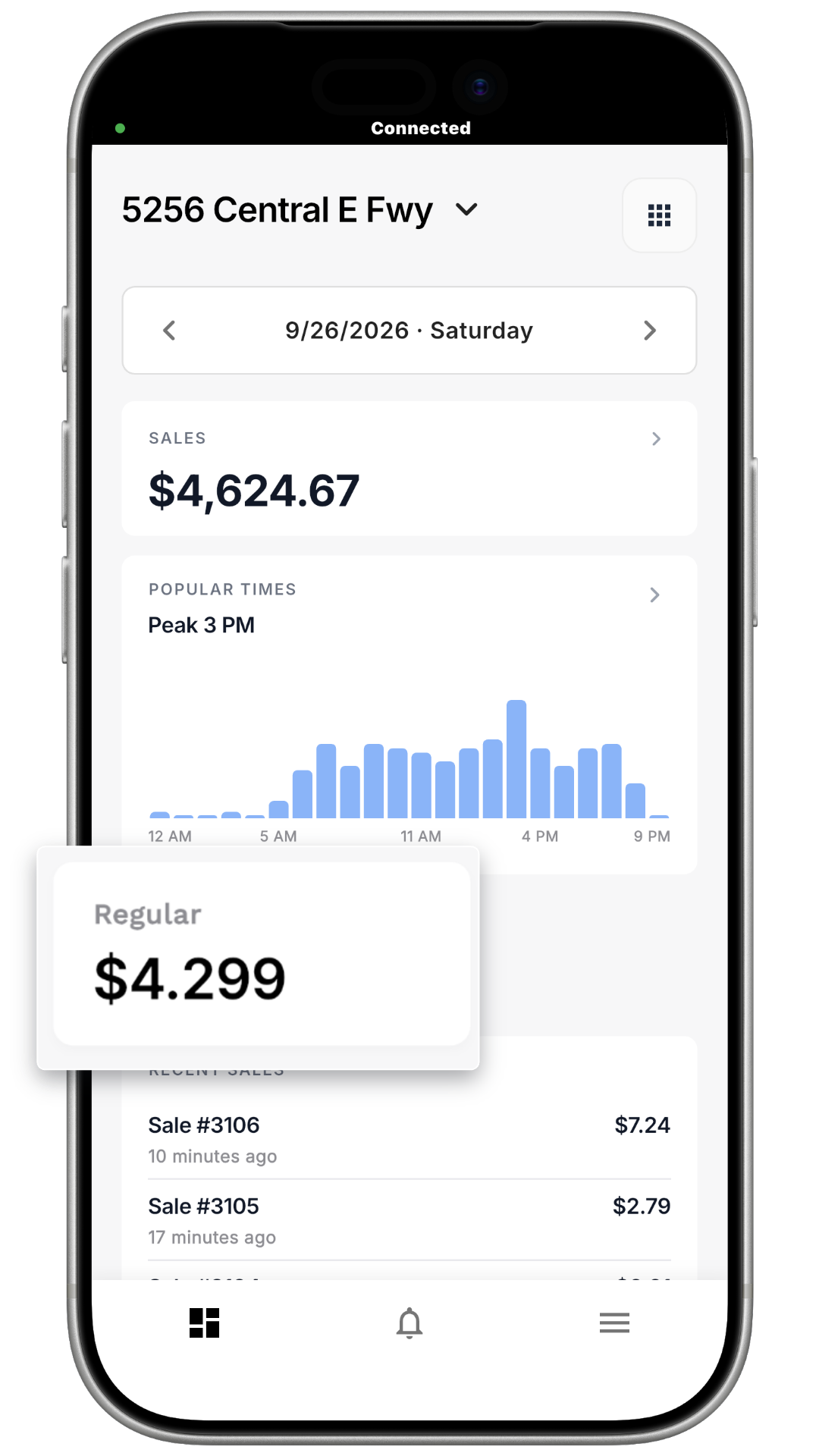
- Check Home now shows only the Regular price card.
Example 2: Hide the Popular Times card
-
On the Widgets screen, tap the toggle next to Popular times so it turns gray.
-
Tap Save, then go back to Home.
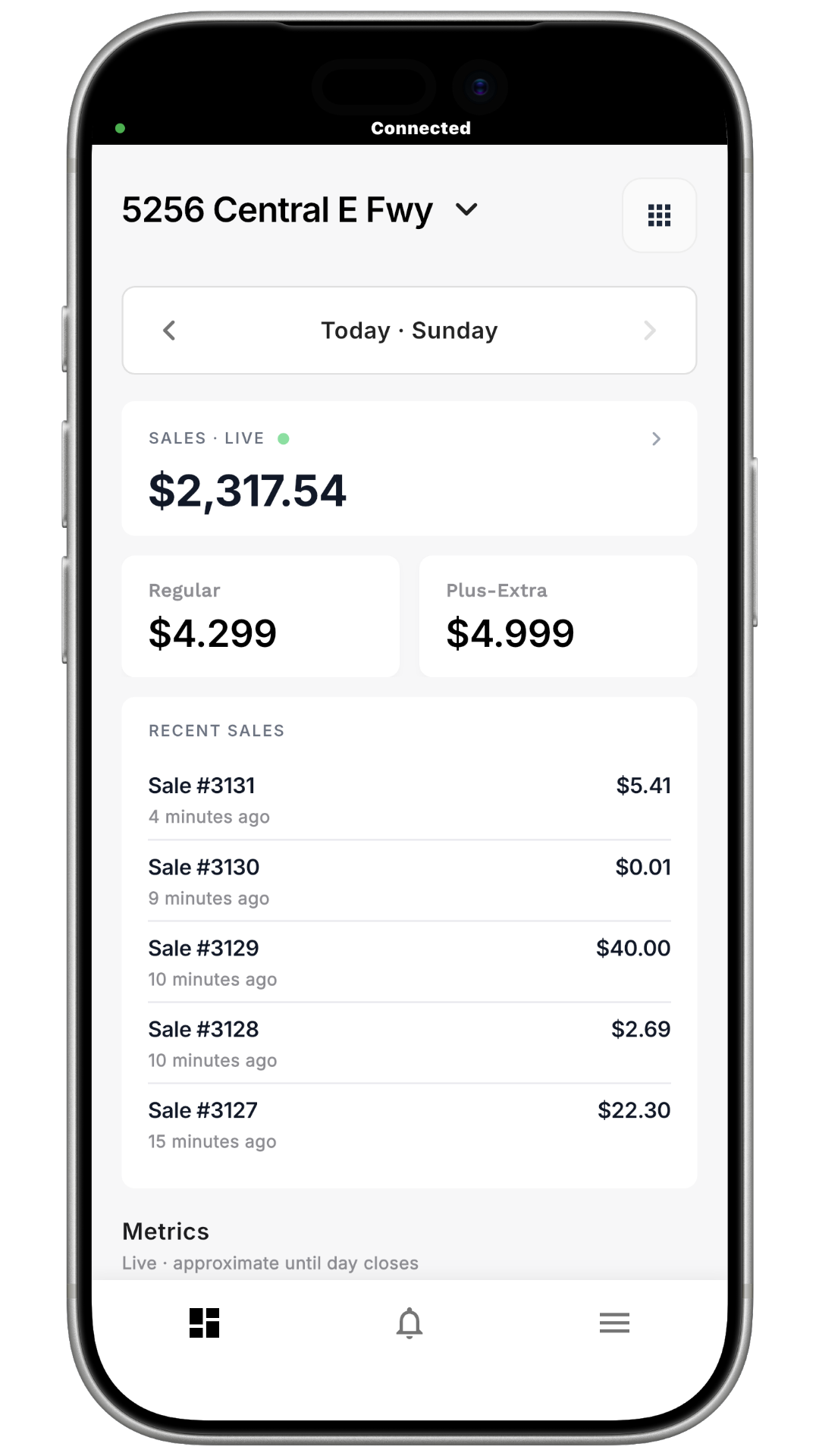
Popular Times is gone, and the cards below it move up. Today's Home now shows Sales, fuel prices, Recent Sales, and Metrics.
Now Check the Main Screen you will see:
Popular Times is gone, and the cards below it move up. Today's Home now shows Sales, fuel prices, Recent Sales, and Metrics.
-
Summary: How to understand the Widgets setting
-
Home is a stack of widgets. Each row on the Widgets screen is one card on Home.
-
Toggles control what's visible. Black means shown, gray means hidden. Turning something off only hides the card.
-
Order matters. Dragging a widget up or down changes where it sits on Home. Put what you check most at the top.
-
Some widgets have a second level. If a row has an arrow, tap it to choose details. Fuel prices, for example, lets you pick which grades appear.
-
You can't break anything. Reset to defaults restores the original layout.
-
Assumptions to confirm
-
[A] Changes only take effect after tapping Save. The button looks gray in your screenshots, so check whether it turns active once you change something.
-
[A] The order on the Widgets screen is the same as the order on Home.
-
[A] Live Sales controls the Recent Sales list, and Metrics controls the Metrics section at the bottom of Home.
-
[A] The number in parentheses (Fuel prices (4), Cashier report (5), Metrics (6)) is how many items are available in that widget. In Example 1 the Fuel prices row shows (4) but the default screenshot doesn't, so please confirm.
-
[A] The layout is saved to the user's account, not just that one phone.
-
[A] The Sunday and Saturday dates in the screenshots only reflect the days they were taken, not a setting.