What it does: This setting controls how the app reads barcodes when you scan items in your store — either with your phone's built-in camera, or with a paired Bluetooth barcode scanner.
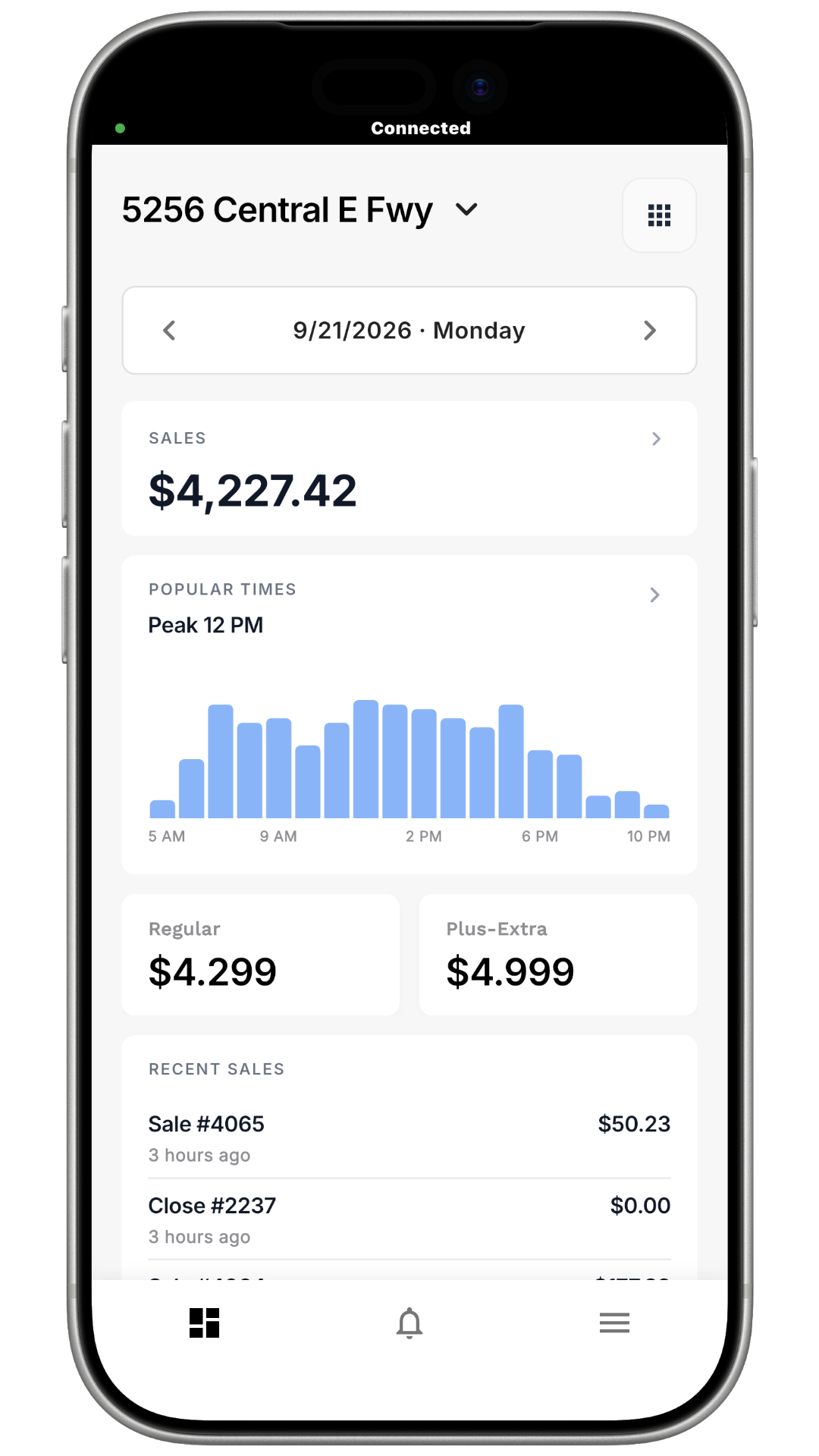
Step 1 — Open the menu
From the home page, go to the bottom of the screen. In the bottom-right corner, tap the three-line icon (☰). This opens the Settings menu.
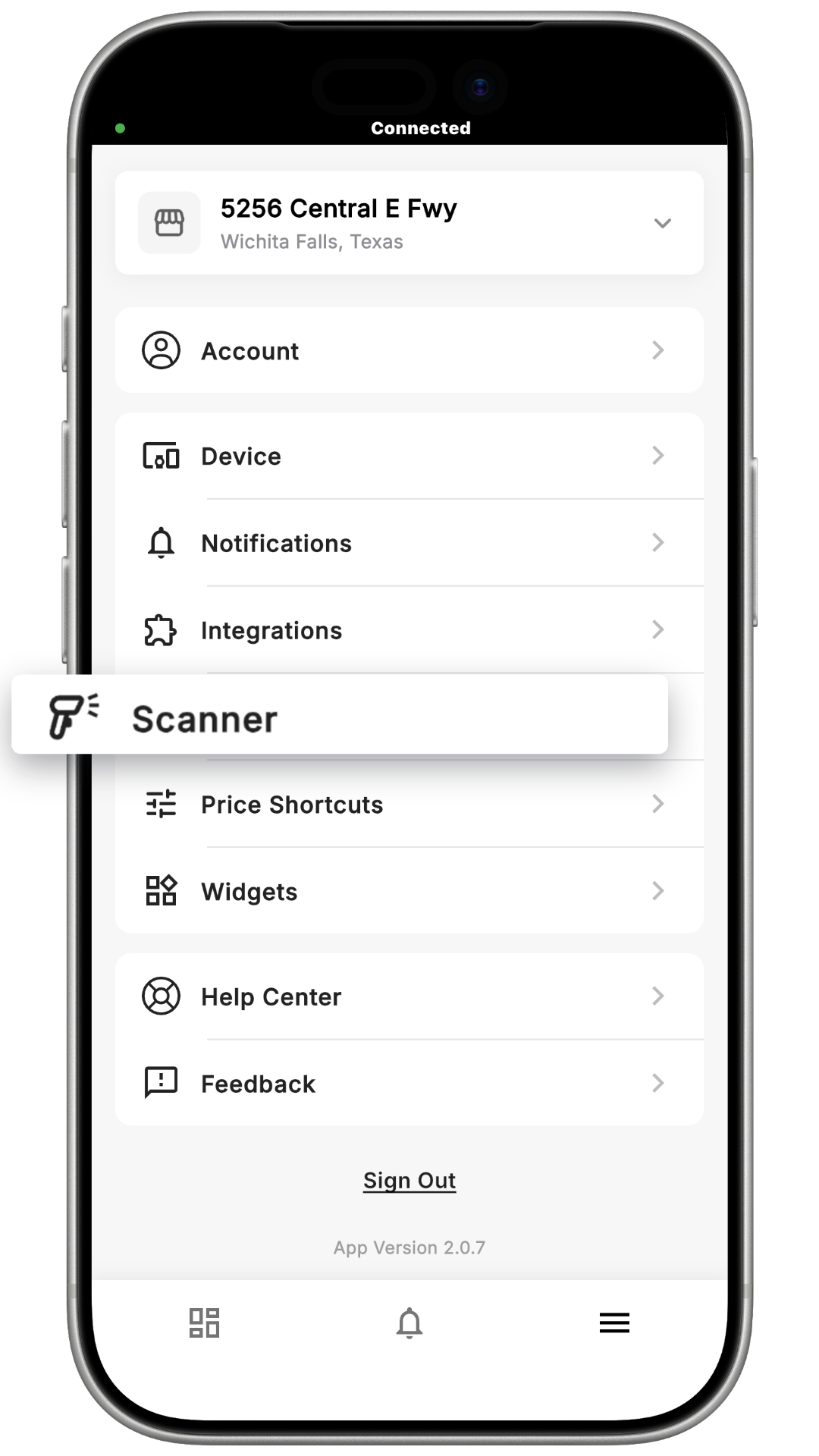
Step 2 — Tap Scanner
In the Settings menu, scroll to and tap Scanner. This opens the Choose scanner mode screen.
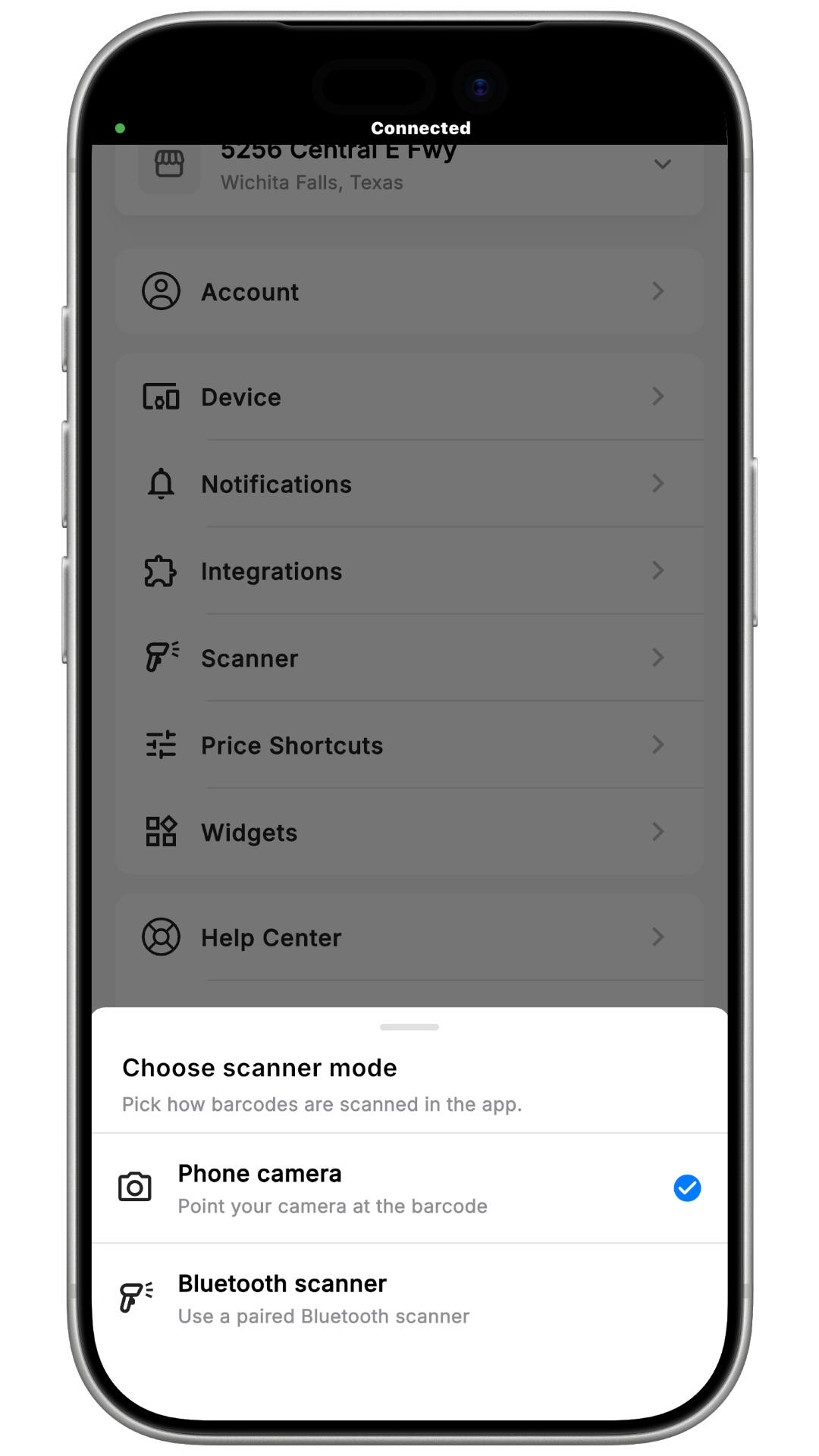
Step 3 — Choose your scanning method
You'll see two options:
-
Phone camera — Uses your phone's camera. Point it at the barcode to scan.
-
Bluetooth scanner — Uses a paired Bluetooth barcode scanner device instead of the camera.
[ Tap the option you want to use. A blue checkmark shows which mode is currently active.]
Note: If you choose Bluetooth scanner, make sure your scanner device is paired with your phone first (through your phone's Bluetooth settings) before you start scanning items in the store. [A] — assuming pairing happens outside the app, in the phone's system Bluetooth settings, since this screen only lets you select the mode, not pair the device. Worth confirming with your team whether the app has its own in-app pairing flow.