
Price Shortcuts: Change Prices Faster with One-Tap Buttons
What it does: Price Shortcuts lets you set up quick + / − buttons for changing prices. Instead of typing a new price every time, you tap a button that raises or lowers the price by a set amount, such as 10¢ or 25¢ on store items, or 1¢ or 2¢ on fuel. You choose the values once, and the shortcuts are ready whenever you adjust a price.
Step 1: Open the Settings menu
On the Home screen, tap the three-line icon (☰) in the bottom-right corner.
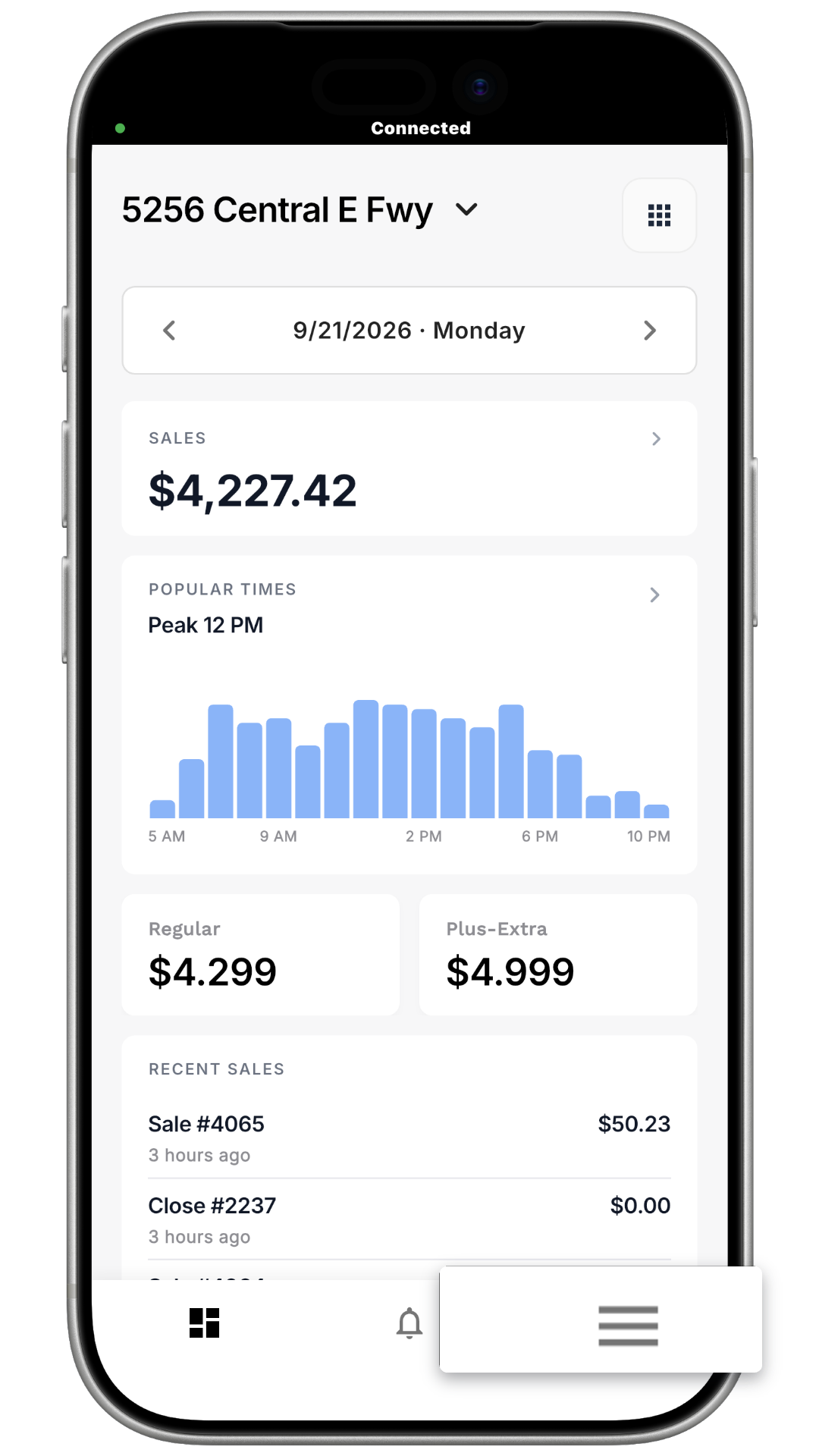
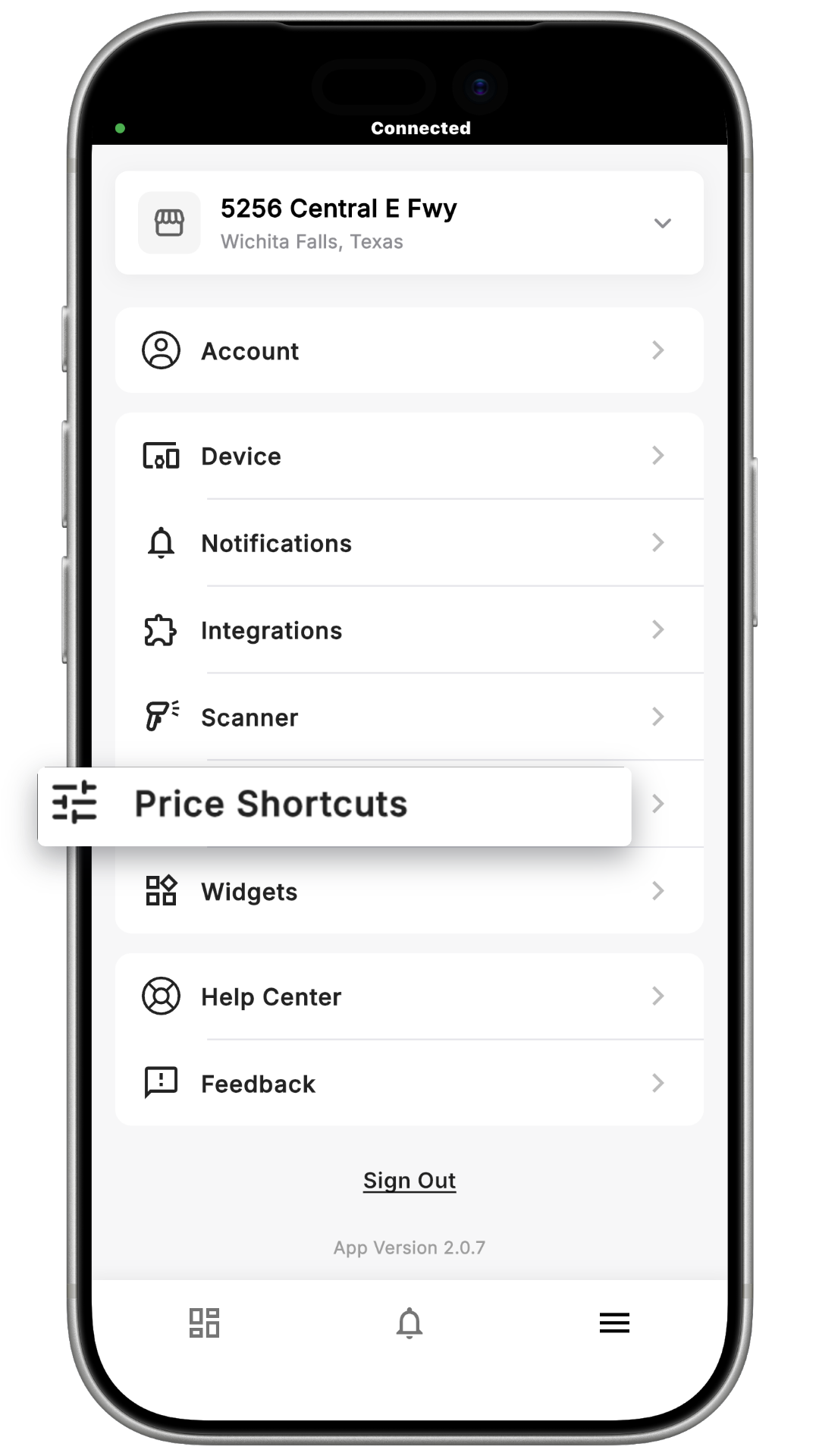
Step 2: Tap Price Shortcuts
In Settings, tap Price Shortcuts (the sliders icon, just below Scanner).
Step 3: Choose what you're setting up: Pricebook or Fuel
At the top of the screen is a toggle with two tabs:
-
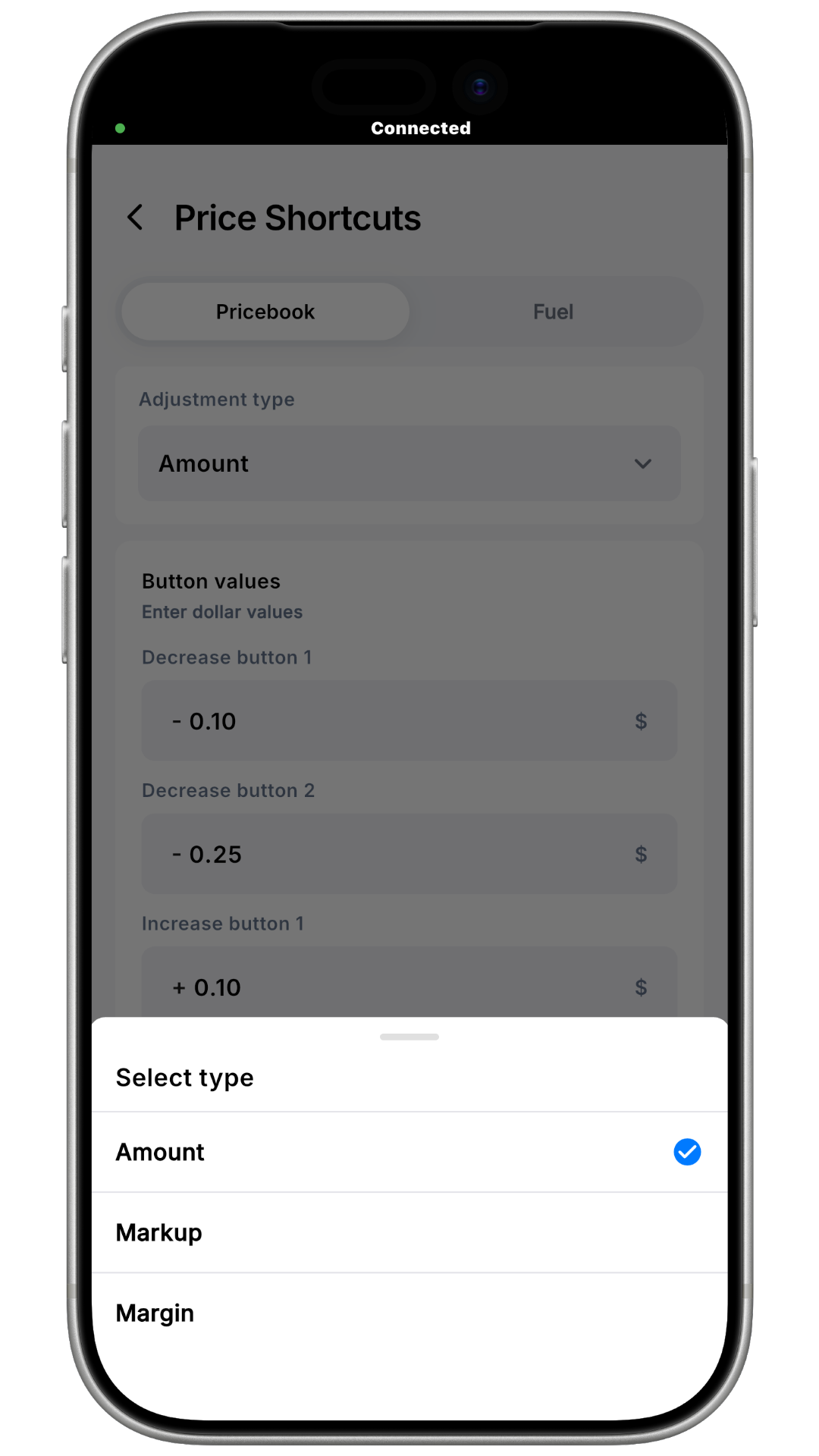
Pricebook: shortcut values for store items. The screen shows −0.10, −0.25, +0.10, and +0.25.
-
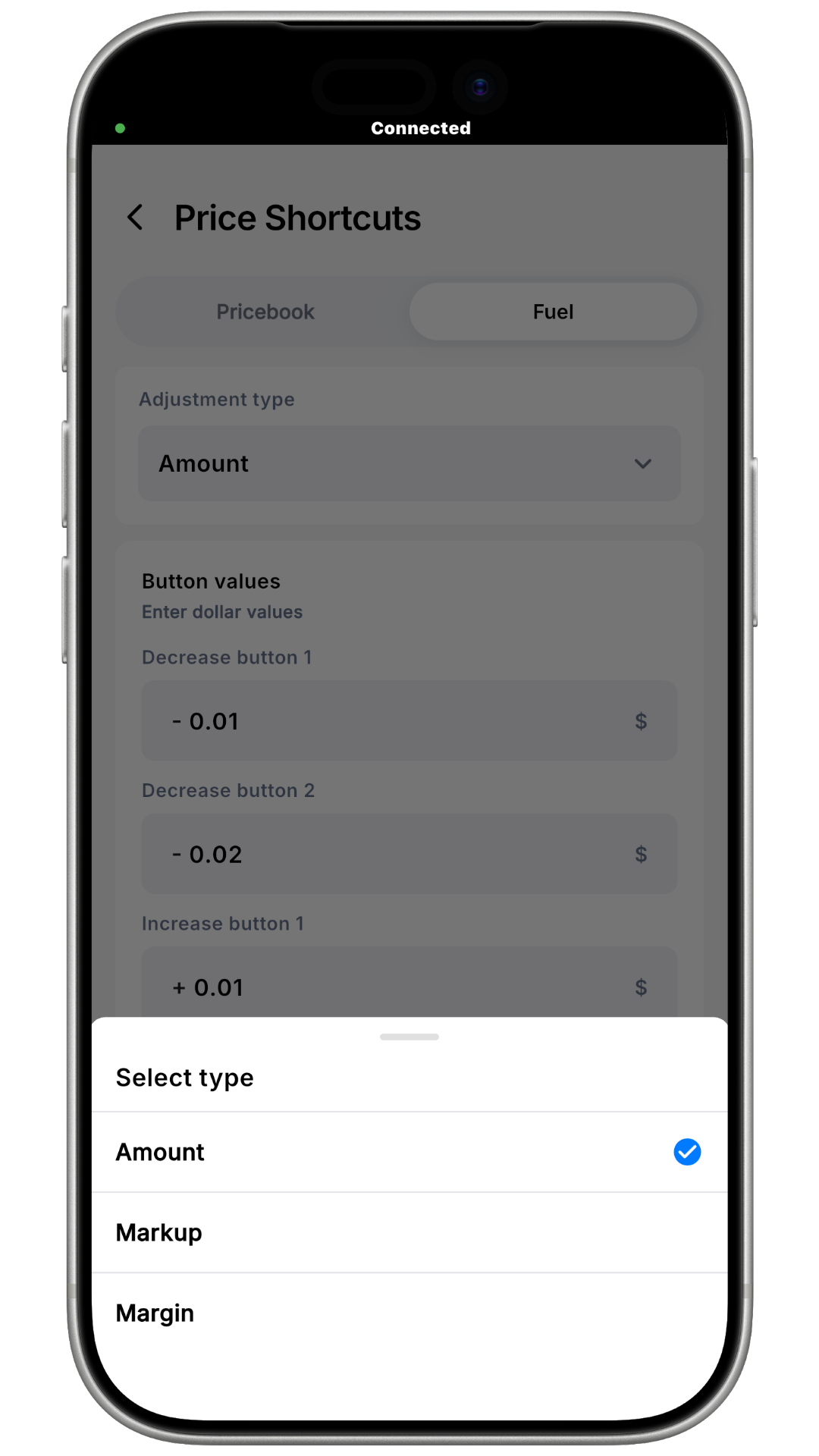
Fuel: shortcut values for fuel grades. The screen shows −0.01, −0.02, +0.01, and +0.02.
Each tab has its own values, so set them up separately.
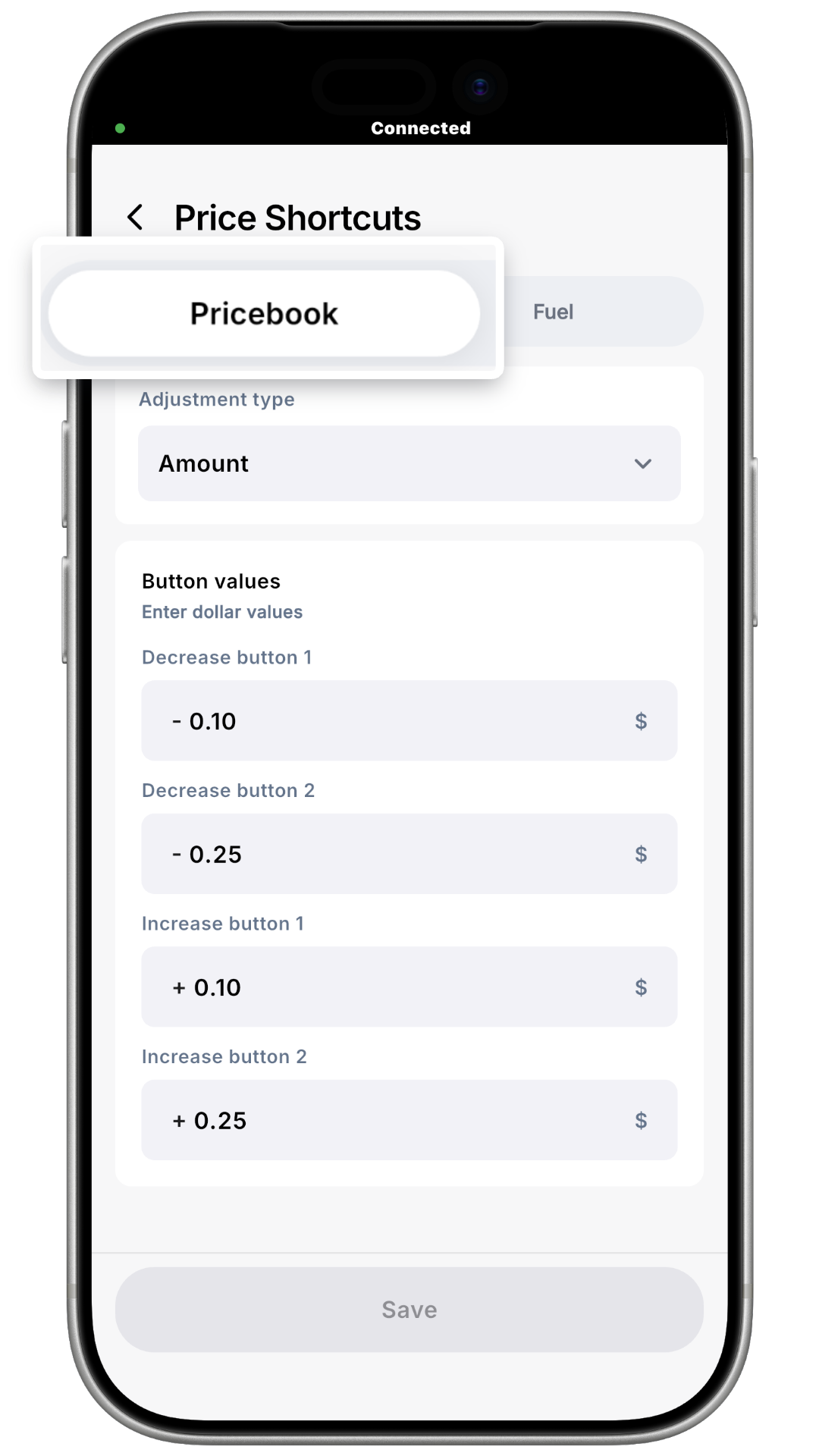
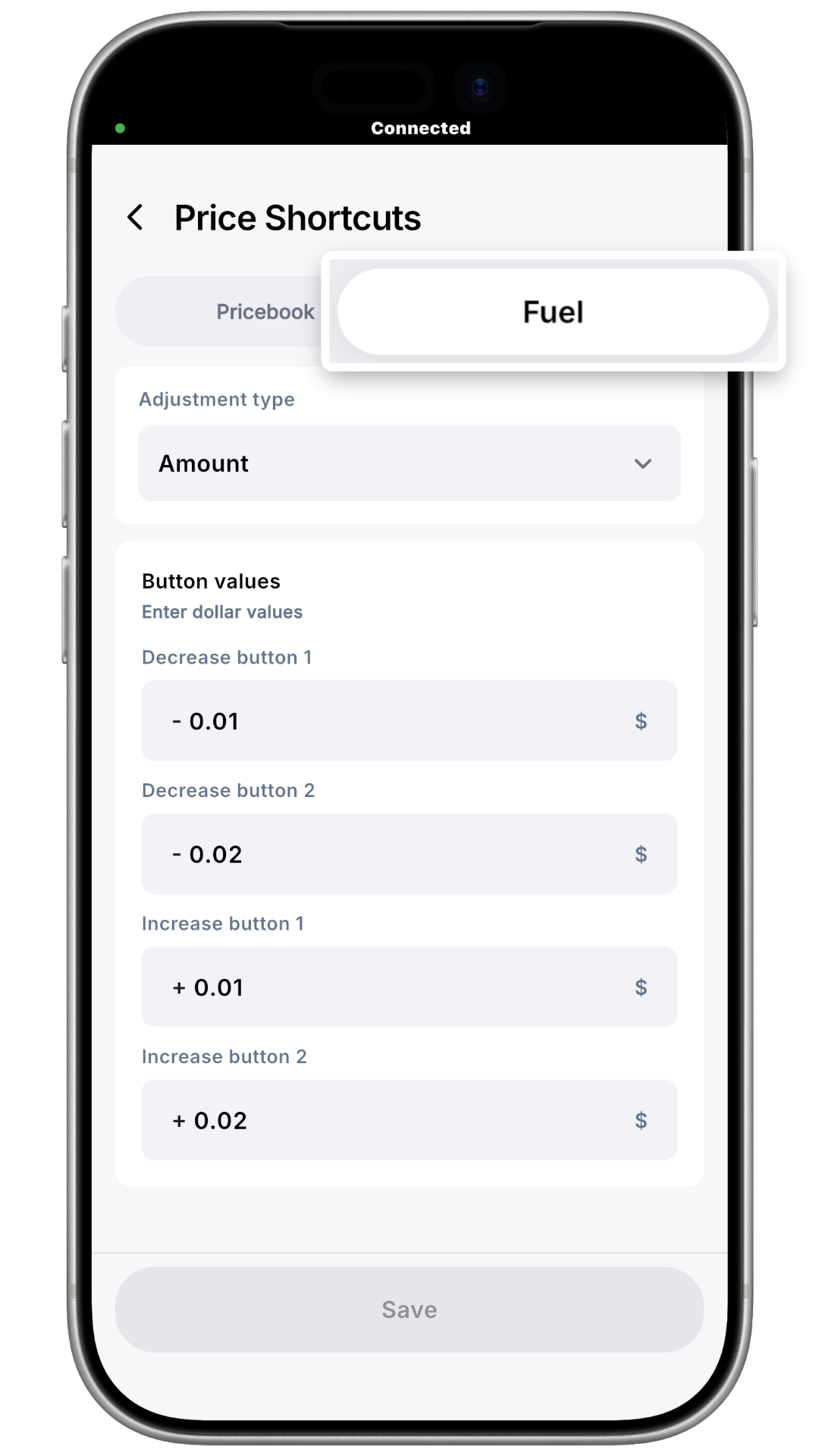
Step 4: Choose the adjustment type
Tap the Adjustment type box (it shows Amount). A Select type menu slides up with three choices:
-
Amount: each button changes the price by a fixed dollar amount. This is the option shown in the screenshots, and the screen says "Enter dollar values."
-
Markup: the shortcuts work from a markup percentage.
-
Margin: the shortcuts work from a margin percentage.
The blue checkmark shows which type is active. Tap another one to switch.
Step 5: Set your four button values
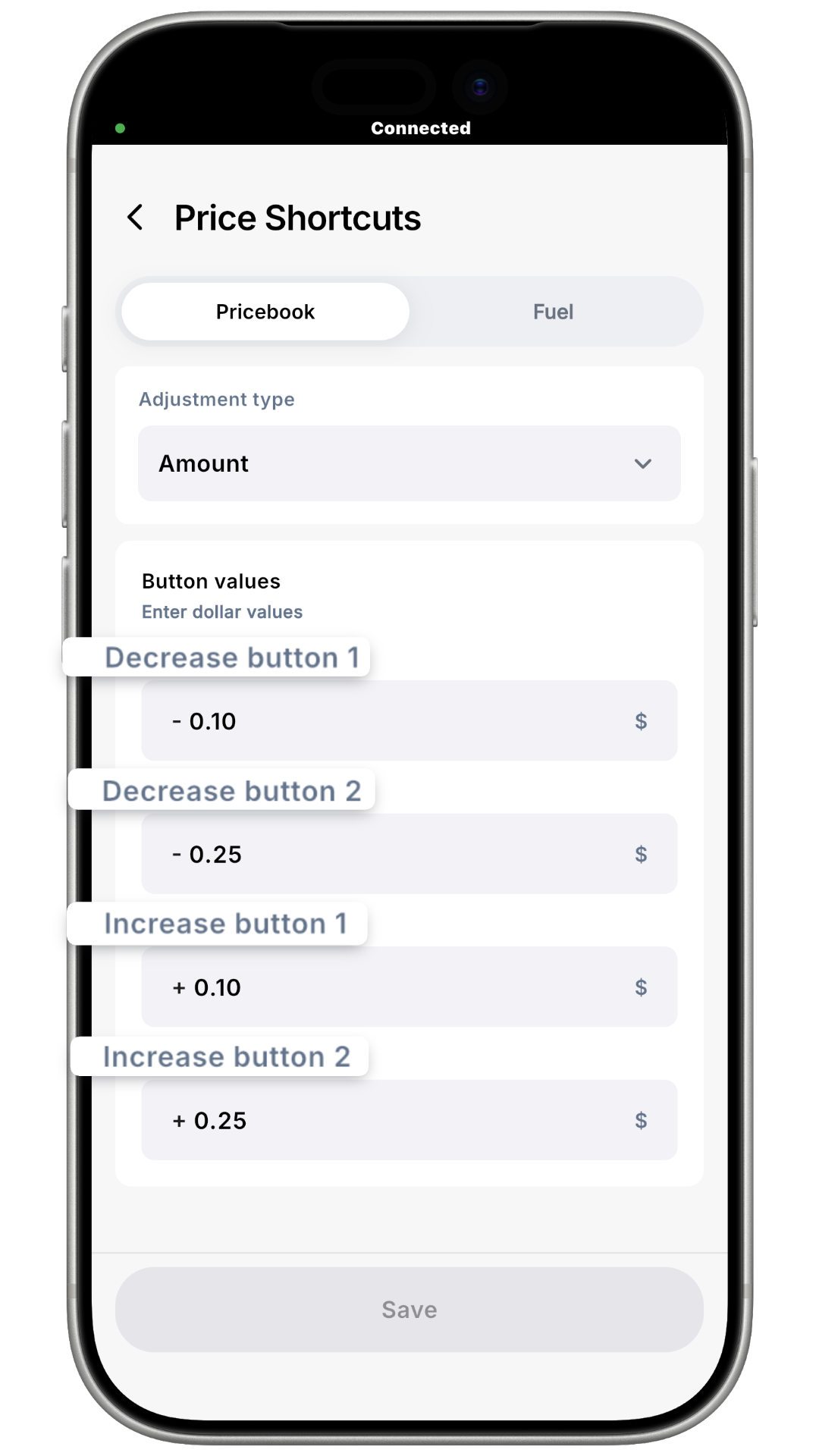
Under Button values you'll see four fields:
| Field | What it does | Default (Pricebook) | Default (Fuel) |
|---|---|---|---|
| Decrease button 1 | Small price drop | − $0.10 | − $0.01 |
| Decrease button 2 | Bigger price drop | − $0.25 | − $0.02 |
| Increase button 1 | Small price increase | + $0.10 | + $0.01 |
| Increase button 2 | Bigger price increase | + $0.25 | + $0.02 |
Tap any field. A number keypad with a decimal point opens. Type the dollar value you want, for example 0.50.
Tap any field. A number keypad with a decimal point opens. Type the dollar value you want, for example 0.50.
Step 6: Tap Save
Tap the black Save button at the bottom. Then switch to the other tab (Pricebook or Fuel) and repeat if you want to change that one too.
Example
( Take a look from the screenshots bellow .)
-
Store item at $1.00: tap +0.25 and the price becomes $1.25. Tap −0.10 and it becomes $1.15.
-
Fuel grade at $4.299: tap +0.01 and it becomes $4.309.
| Examples < PriceBook- Fuel> | |||
|---|---|---|---|
| Default | Increase | Decrease | |
| Default | Increase | Decrease | |
| Default | Increase | Decrease |
Summary: How to understand Price Shortcuts
-
It's a settings screen, not a price editor. You don't change any price here. You only decide what the quick buttons do when you change prices elsewhere in the app.
-
Two buttons in each direction. One small step and one big step, so you can nudge a price or make a larger move in a single tap.
-
Pricebook and Fuel are separate. Store items usually move in dimes and quarters, and fuel moves in single cents, which is why the defaults are different.
-
Amount, Markup, and Margin are three ways to describe a change. Amount is a dollar figure. Markup and Margin are percentages, calculated the same way as in the Profit Calculator: markup is a percentage added on top of cost, and margin is profit as a share of the selling price.
-
Why it's worth setting up:
-
Faster: one tap replaces typing a whole price.
-
Fewer mistakes: no wrong digits or misplaced decimals.
-
Consistent: every price change follows the same steps.
-
Fits your store: set the increments to match how you actually price, whether that's a penny on fuel or a quarter on snacks.
-
Assumptions to confirm
-
[A] The shortcut buttons appear on the screens where you change an item's price (Pricebook) and a fuel grade's price (Fuel). The screenshots only show the settings screen, so please confirm where they show up.
-
[A] With Markup or Margin selected, the four fields switch from dollar values to percentages. Only Amount is shown in the screenshots.
-
[A] The minus and plus signs are fixed. You type only the number, not the sign.
-
[A] Save looks gray in every screenshot and probably turns active after you change a value.
-
[A] The Pricebook and Fuel tabs are saved separately, and the values apply to this store or account, not just one phone.